What Jalonio does
Everything described on this page is already in the app. Some features depend on your plan: reminders and automations (Perso and Pro), team and guests (Pro), and the MCP server (an add-on for Perso and Pro).
Clients and projects
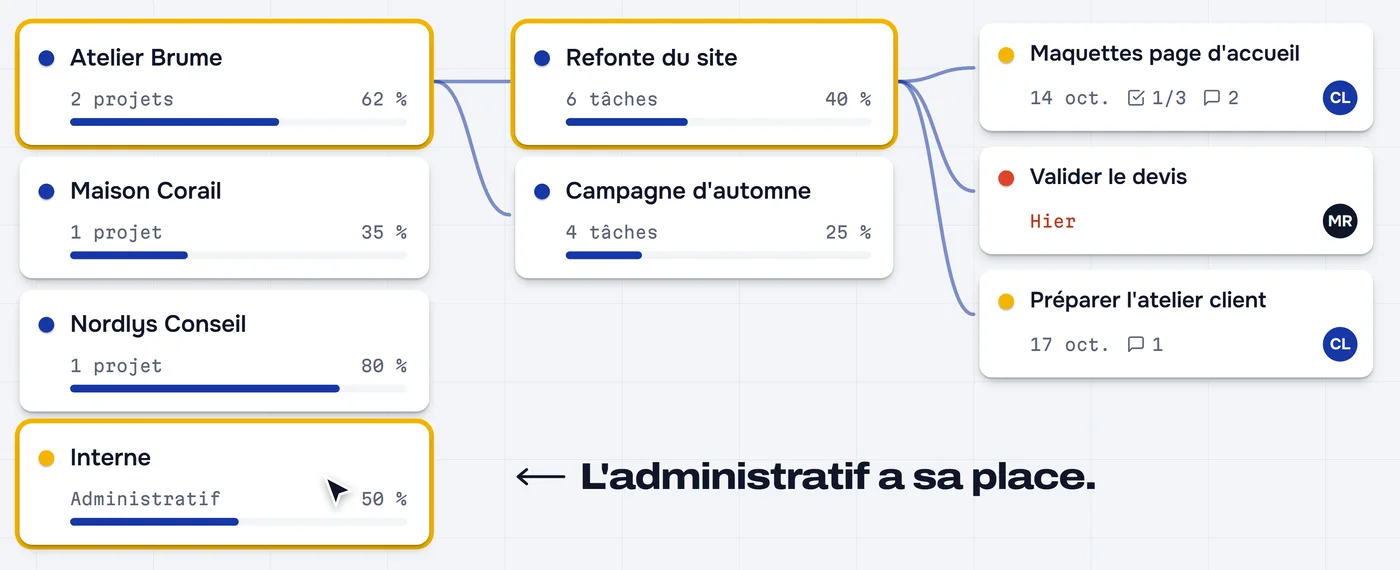
Your workspace holds your clients, each client has its projects, and each project has its tasks. It's the way you already think about your work.
- An “Internal” client is set up from the start, for admin work and meetings.
- When a project is over, you can archive it. It stays readable, and you can bring it back later.
- The home page shows how far along each active project and each client is.
Tasks with all the details
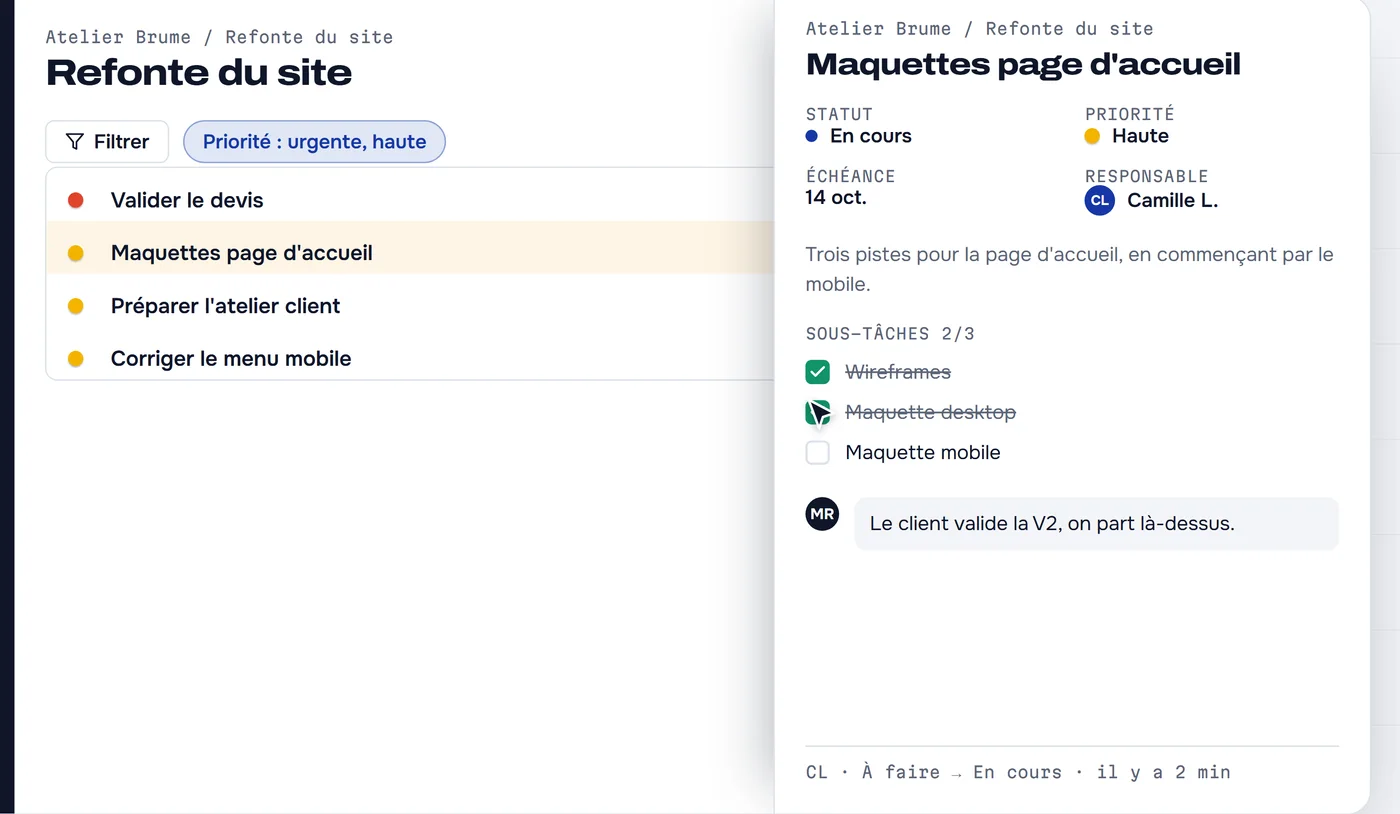
Assignee, due date, priority, status, formatted description and comments, and links to your documents.
- Four priority levels (urgent, high, normal, low), each with its own colour.
- Categories shared across the workspace (development, meetings, admin…), each in the colour you pick from ten: it shows on the task in every view.
- Each project has its own statuses. The defaults are To do, In progress and Done, and you can rename and reorder them.
- Up to three levels of subtasks. An existing task can be turned into a subtask, and back again.
- Every task keeps its history: when it was created, changes of status, priority, category, assignee and due date, and comments.
List, Kanban, calendar, Gantt and mind map
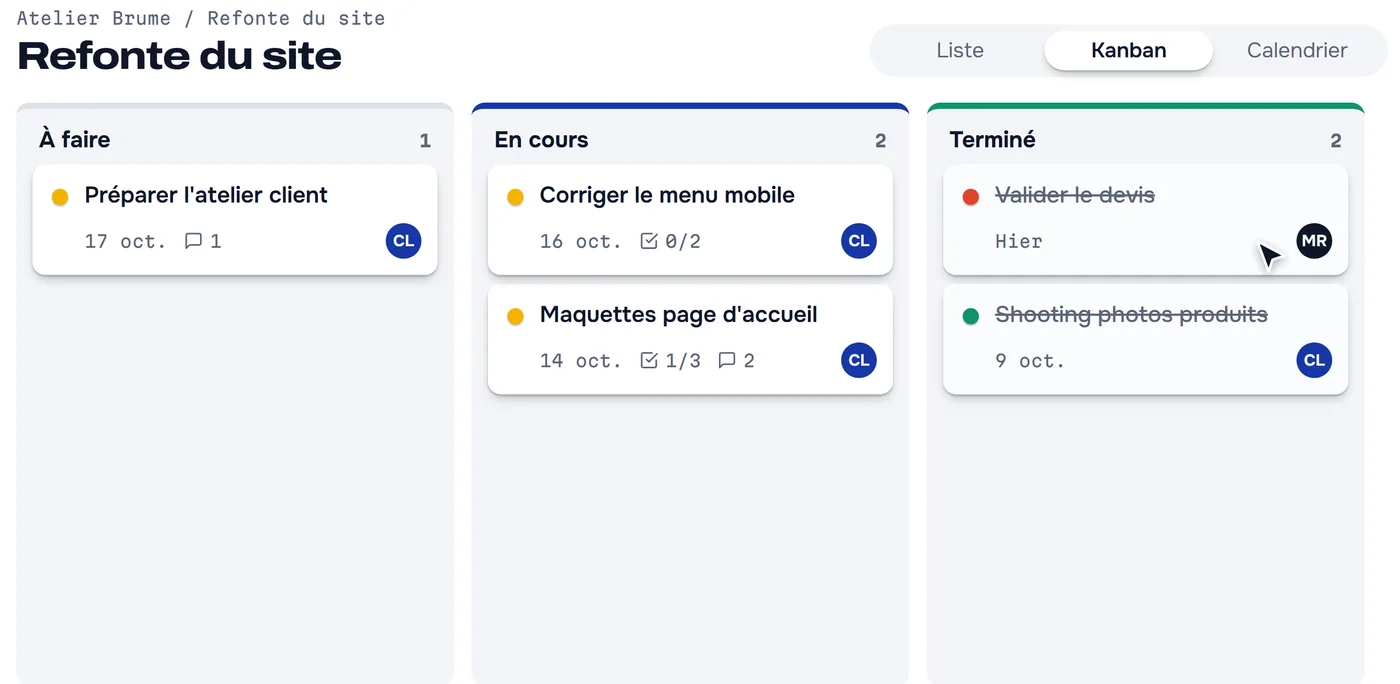
A project can be shown in five ways. Whatever you change in one view appears straight away in the others.
- The list can be filtered by status, priority, category, assignee, due date or text. Click a task to open its details alongside.
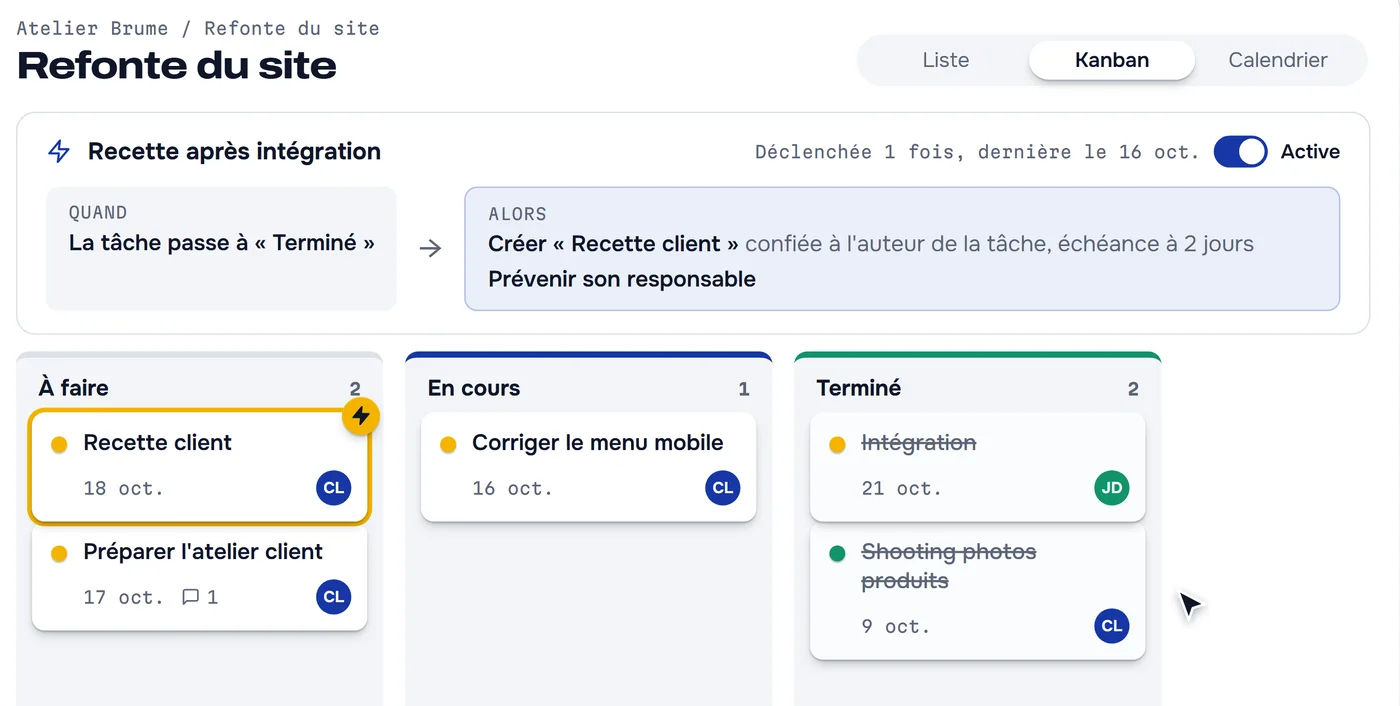
- The Kanban board sorts tasks by status. You move cards with the mouse, a finger or the keyboard.
- The calendar shows a month or a week. Tasks without a due date are listed separately. A shared calendar also gathers the due dates of all your projects, filtered by client, project or assignee.
- The Gantt chart places each task between its start date and its due date, connects tasks that depend on each other, and can be viewed by day, week or month.
- The mind map puts the project in the centre with its tasks branching out on both sides and subtasks further out. The colour of each thread shows where the task stands (to do, in progress, done). Branches fold away, and you can zoom out to see the whole project.
- On the map, drag a task onto another one to make it a subtask, or drop it on the project to make it a top-level task again. The “+” button adds a task or a subtask right where you want it.
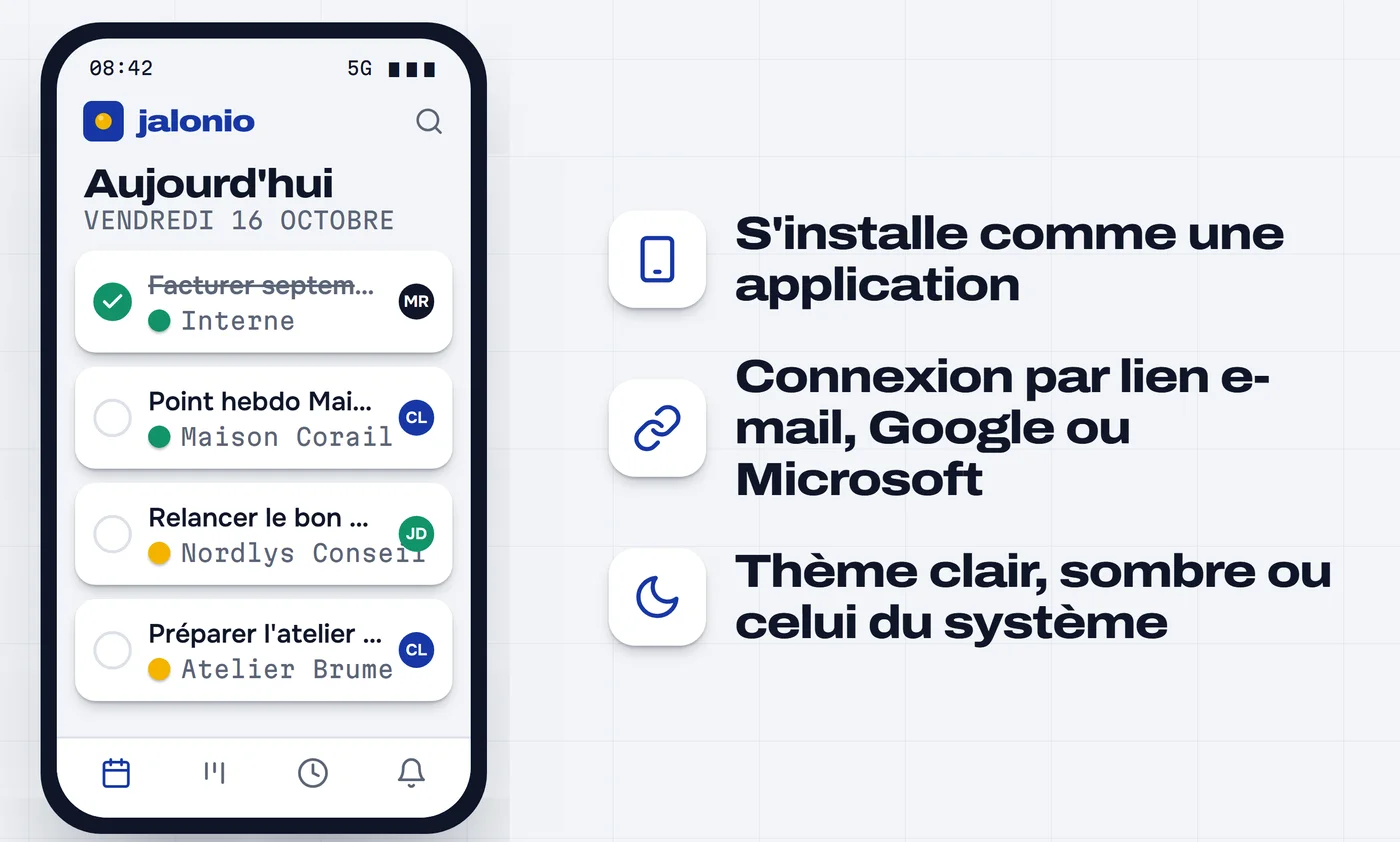
- The “Today” view lists everything due today, whatever the client.
Search and shortcuts
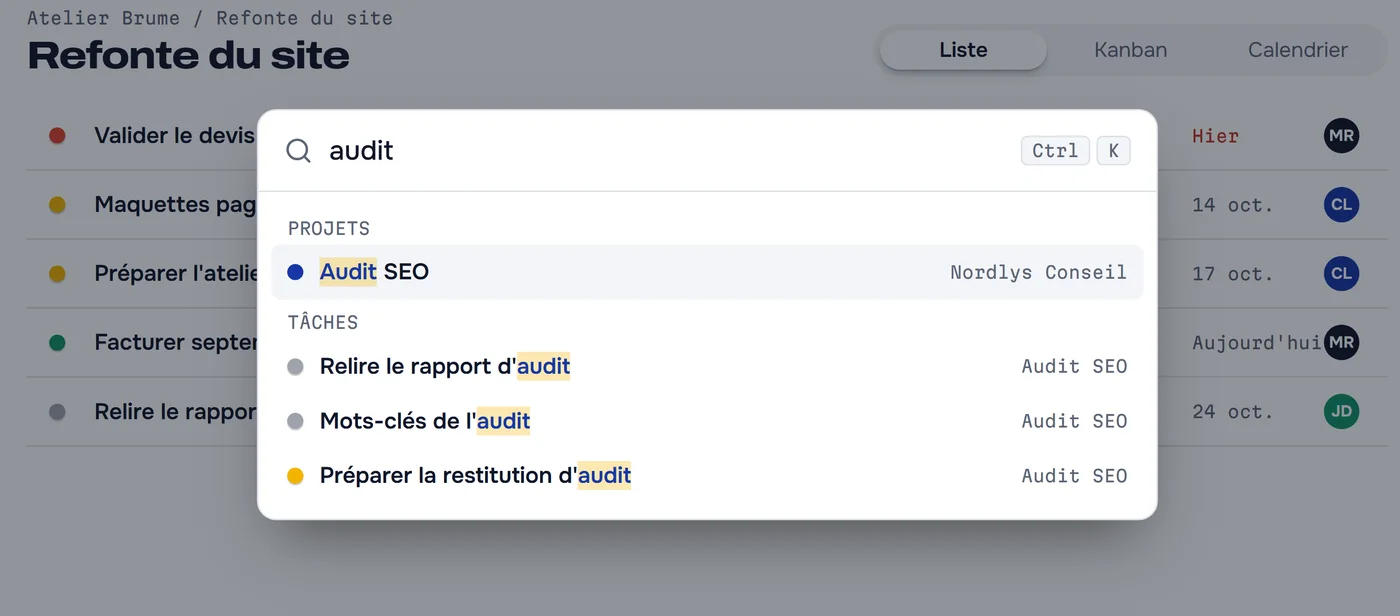
To find a client, a project or a task without going through the menus.
- Cmd/Ctrl + K opens search across the whole workspace: clients, projects, and task titles, descriptions and comments.
- Press “?” to see the keyboard shortcuts.
On desktop and mobile
Jalonio runs in the browser and can be installed like an app (PWA). It is available in French and English.
- No password: you sign in with a link sent by email, or with Google or Microsoft.
- Light or dark theme, your choice, or matching your system.
Reminders, automations and dependencies
Get a reminder before a due date, and let Jalonio move tasks along when a status changes or a date comes up (Perso and Pro plans).
- Personal reminders on a task, on a given day or a few days before it's due. They go out on the morning of that day, around 8 am Paris time: in the app, by email and as a notification on your computer or phone.
- You can also get an automatic reminder for every task assigned to you, as many days before the due date as you like.
- “When… then…” automations, set per project. The trigger can be a status change or a task being completed (applied immediately), or a date N days before or after the due date (checked every morning). The action can change the status, priority or assignee, create a task or notify someone.
- Dependencies: when a task is waiting on another one, it shows as “blocked” in the list and on the Kanban board. An automation can start the next tasks as soon as the previous one is done.
Time tracking and planning
Log the time you spend on each task, compare it with what you planned, and schedule work on a Gantt chart (all plans).
- You start the timer from a task, and it stays visible in the sidebar. Only one runs at a time.
- You can also enter a duration by hand (45, 1:30, 1h30…), with a date, a note, and whether it is billable.
- Each task can have an estimate, which is compared with the time spent on the task and its subtasks.
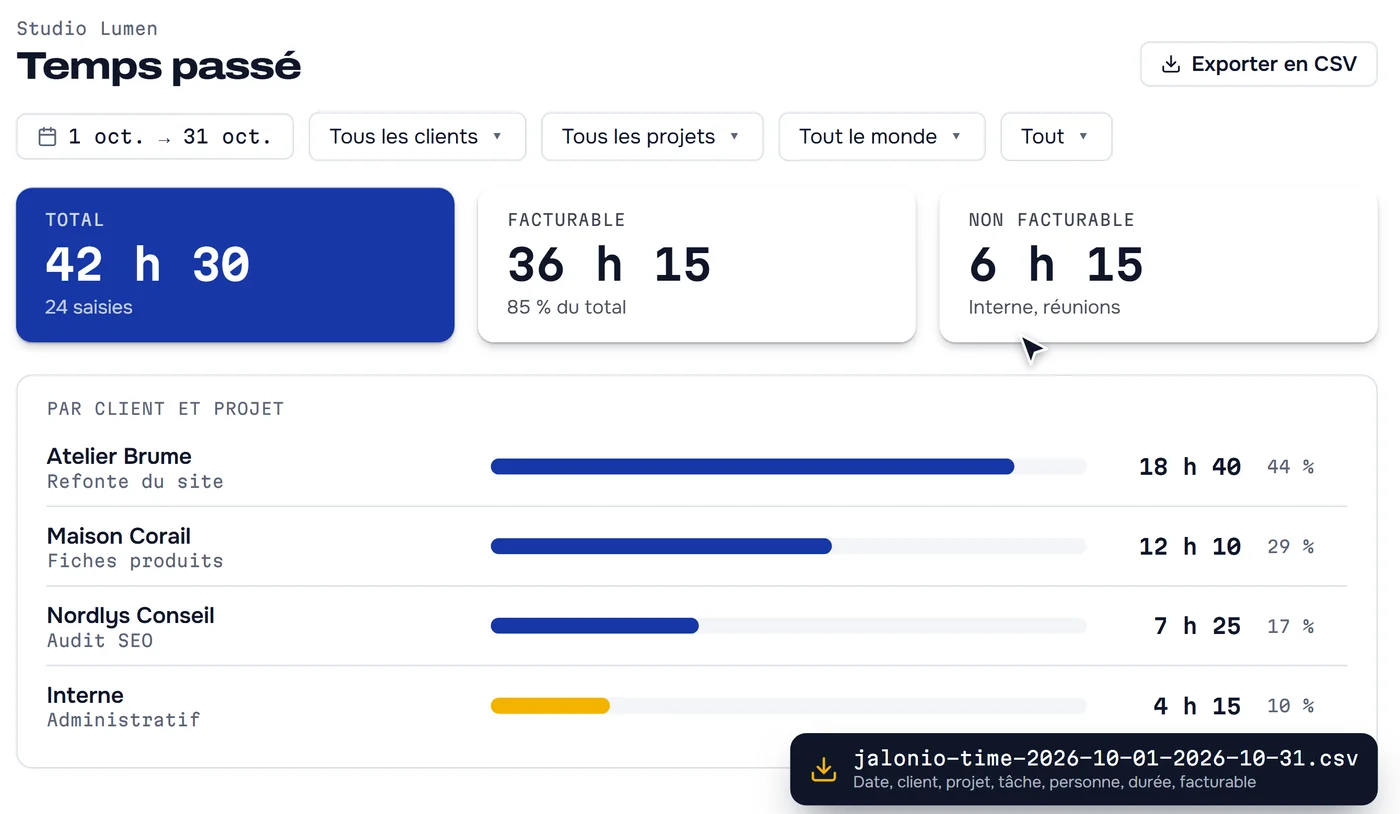
- The “Time” page gives weekly or monthly totals by client, project and person, with the billable share. You can export it as CSV.
- On the Gantt chart, you move or stretch bars with the mouse or the keyboard. Dependencies are drawn, and Jalonio warns you if a task starts before the one it's waiting on has finished.
Custom fields and dashboards
Add your own fields to tasks, and keep an eye on your team's progress and workload.
- Up to 20 fields per project: text, number, date, a list of colour-coded options, a checkbox or a link.
- List options and ticked checkboxes show up on the tiles and Kanban cards, and you can filter by them.
- Every change to a field is recorded in the task's history and included in the data export.
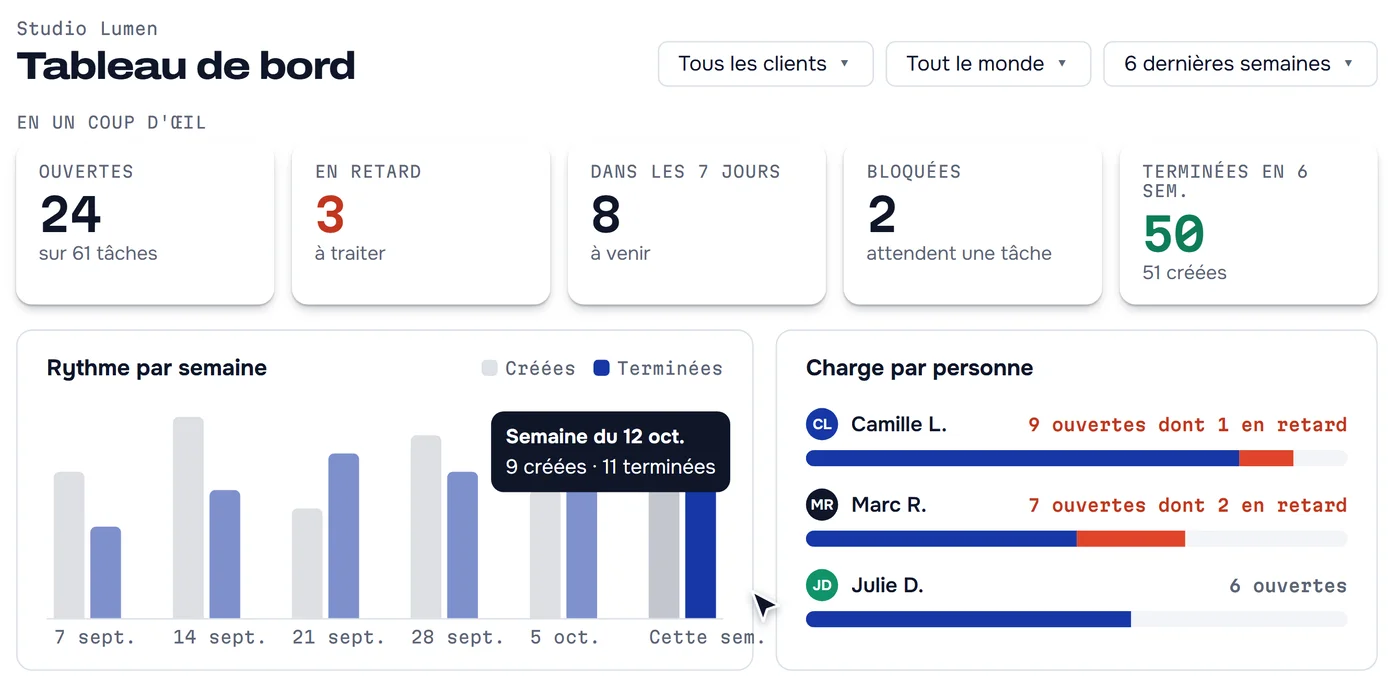
- The dashboard can be filtered by client, project or person. It shows open, overdue, upcoming and blocked tasks, tasks created and completed each week, each person's workload and the spread of priorities.
- It also compares time spent with estimates, project by project, and shows how the values of custom fields are spread.
Team and per-project access
With the Pro plan, you share your workspace with your colleagues and decide who can open which project.
- Invitations are sent by email. There are four roles: owner, admin, member and guest.
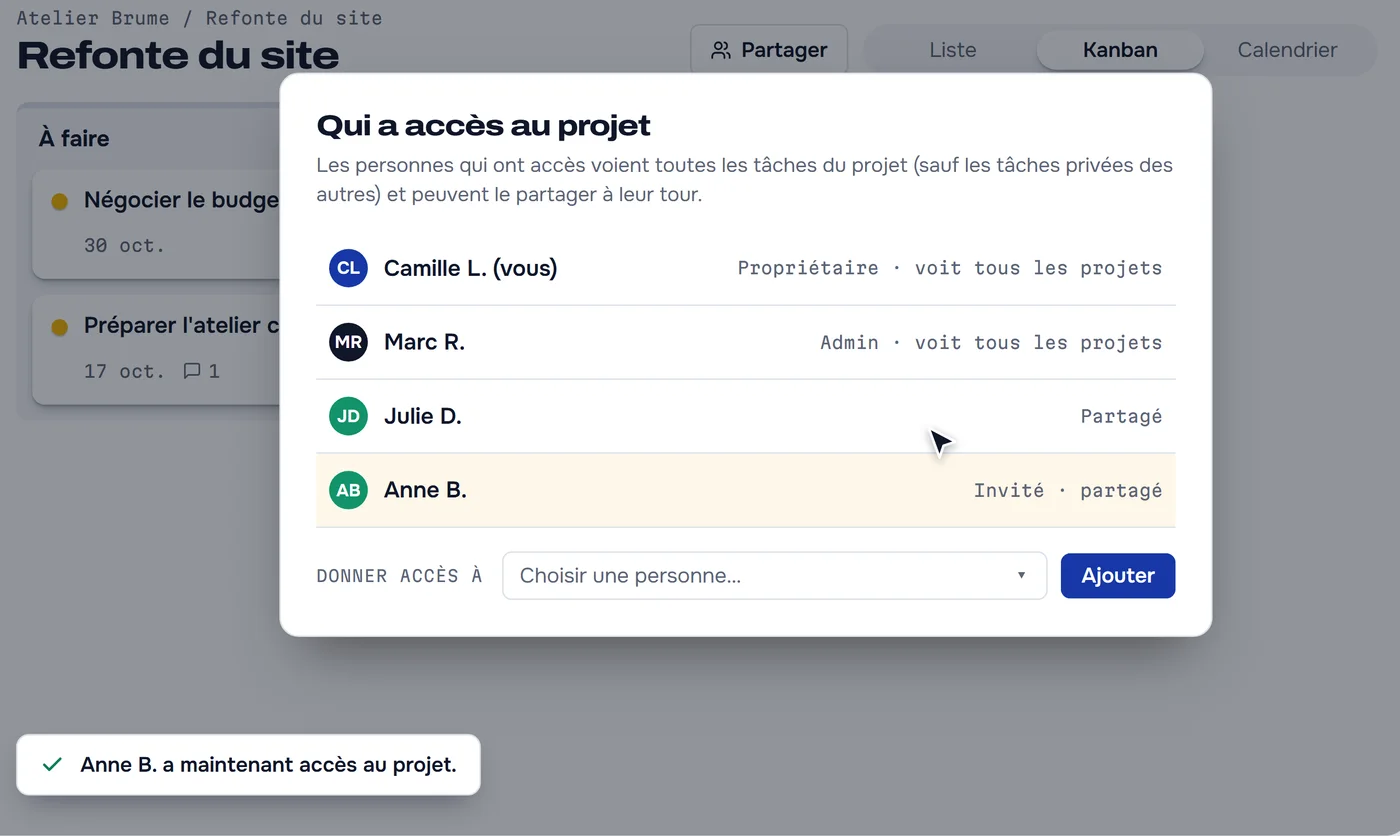
- A member only sees the projects they created or that someone shared with them. Anyone with access to a project can share it with another member.
- Within a project, everyone sees all the tasks and who they're assigned to. Only private tasks are limited to their author and assignee.
- The “My tasks” filter and the filter by person let you see only what concerns you, or a colleague.
Outside guests
With the Pro plan, you can open some projects to someone outside the team, such as a client or a subcontractor.
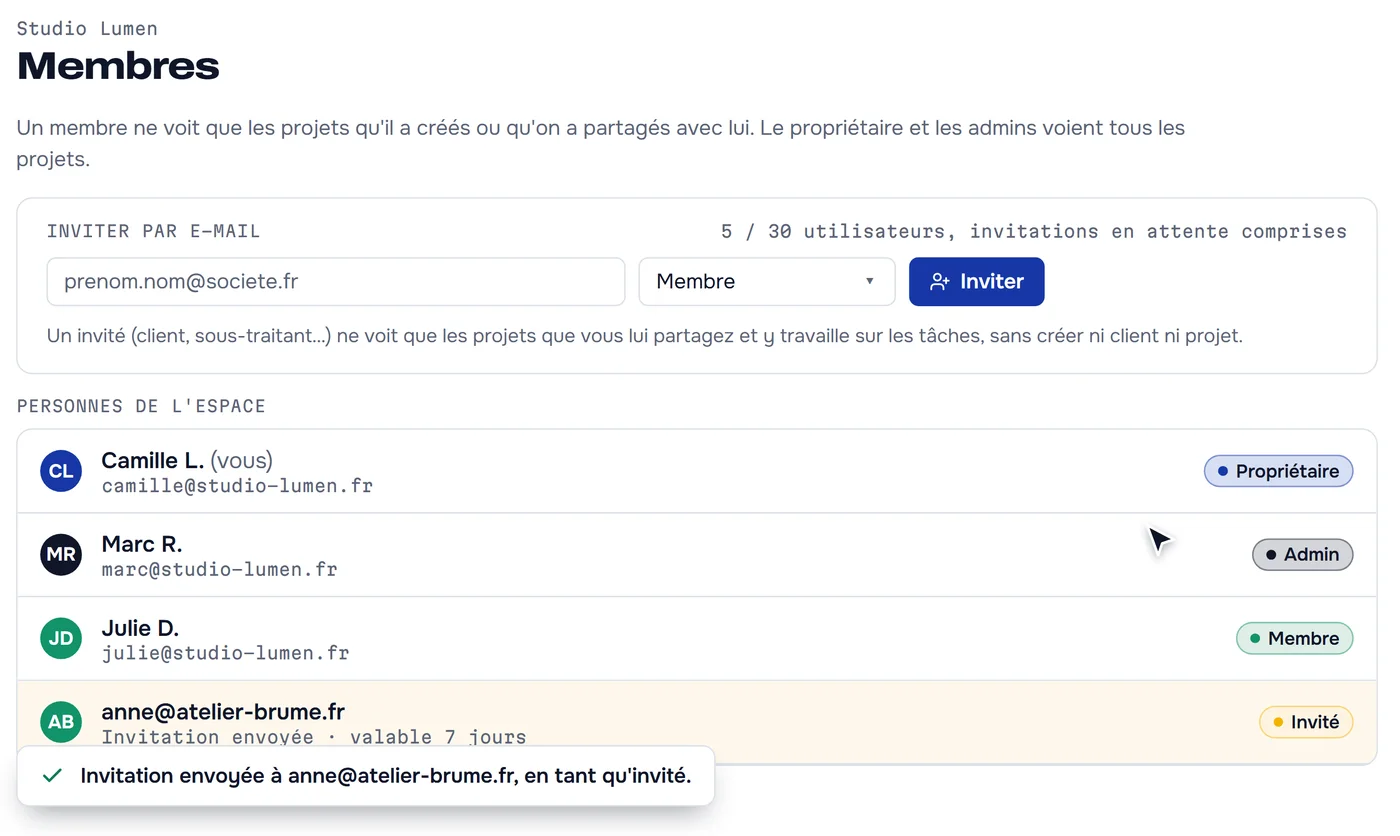
- You pick the guest role when sending the invitation, or later from the Members page. A guest takes up a seat, just like a member.
- Guests only see the projects shared with them, and the clients those projects belong to.
- They can work on tasks: create them, edit them, comment on them and log time.
- They can't create or change clients, projects, statuses or fields, and can't share projects.
Your AI assistant, through MCP
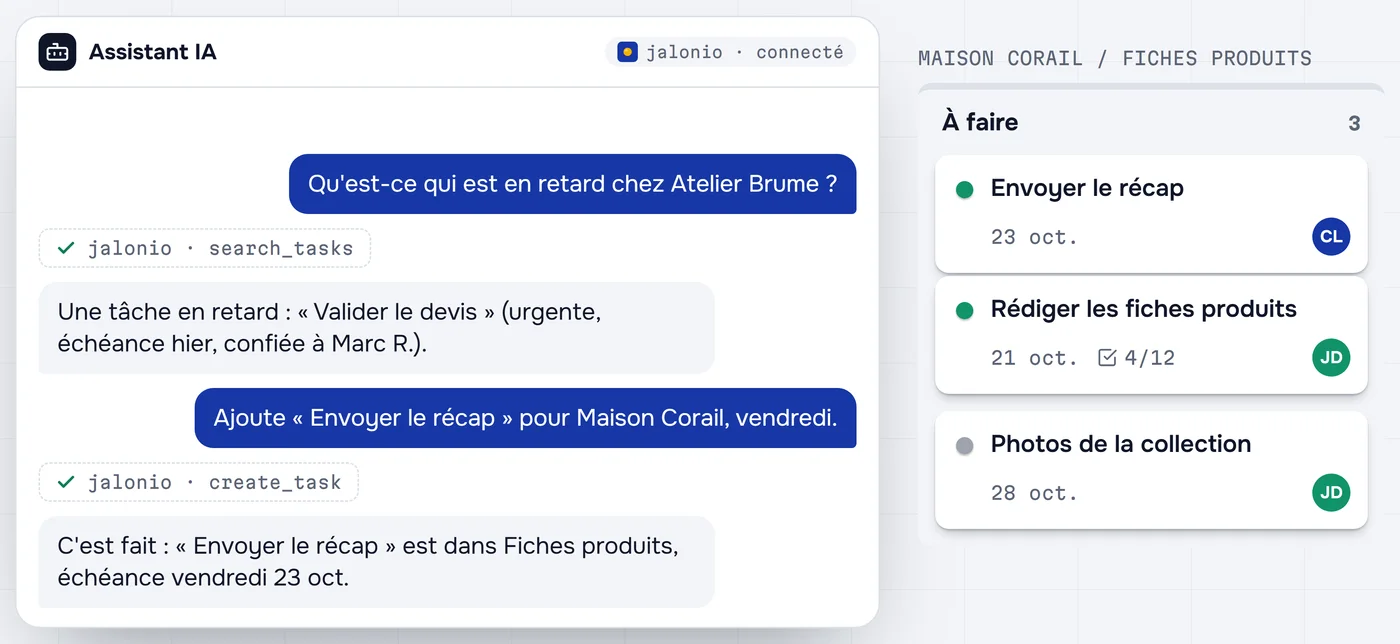
With Jalonio's MCP server, an AI assistant you authorize can look up, search, create and update your tasks.
- Read access: workspaces, projects, tasks with their filters, search and a task's details.
- Write access: create tasks, change their status, priority, category, assignee or dates, comment on them and log time.
- The assistant has the same permissions as you, only in workspaces where the add-on is on. It can't delete anything.
- The add-on costs €2 a month on the Perso plan, or €50 a month per block of 30 users on the Pro plan. You can remove access at any time from "My account".
Add your first client.
Free up to 2 active projects, no credit card.